Jupyter notebooks
.ipynb files are JSON documents of cells. peek renders the cells instead of dumping the raw JSON,
with a dual view like Markdown:
-
Rendered (default) — the notebook is translated to a single Markdown document and rendered through the Markdown pipeline:
- Markdown cells render as prose (headings, lists, emphasis, tables, …).
- Code cells show an
In [n]:label and the source as a fenced block, syntax-highlighted in the kernel language. - Outputs appear under each code cell:
stdout/stderrstreams andtext/plainresults as fenced text,erroroutputs as a boldename: evalueline followed by the traceback (ANSI colour stripped), and image outputs noted by name (matching the Blocks listing, e.g.image-1.png).
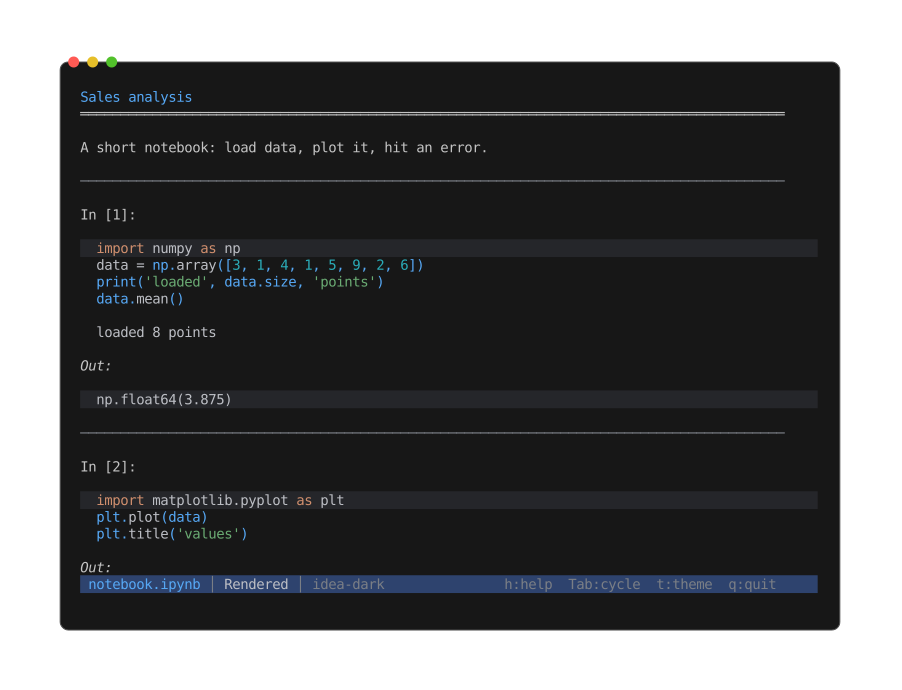
The rendered view: markdown prose, an
In [n]:code cell highlighted in the kernel language, and the cell's output below it. -
Source — the raw notebook JSON, pretty-printed via the structured content mode. Reachable with Tab;
rtoggles the raw (unformatted) JSON. Becomes the entry view with--raw. -
Blocks — a flat table of contents listing every code cell and image output as an ordered sequence with readable names (
code-1.py,image-1.png, …) rather than the notebook's opaque cell ids. From this view you can:- Extract (
e) the selected block — a code cell saves as its.py(or kernel-language) source, an image saves as the decoded.png/.jpg/.svg. Same aspeek --extract code-1.py notebook.ipynb. - Descend (Enter) into the block — peek recurses over an in-memory copy: code opens
syntax-highlighted, images render as ASCII art.
Escreturns to the notebook. peek --list notebook.ipynbprints the block names and sizes to stdout.
- Extract (
--plain drops the rendered view entirely.
Both nbformat 4 and the older nbformat-3 worksheets layout parse.
In the rendered view, image outputs are noted by name (
🖼 image-1.png), not drawn inline — drawing them inside the scrolling text is a planned follow-up. To see an image now, open the Blocks view and descend (Enter) into it.
The Info view adds a Notebook section:
- nbformat version
- Kernel display name and language (+ version)
- Cell count, split into code / markdown / raw
- Output count, with image / error sub-counts
- Highest execution count